On This Page
- Web Animation UX: A Communication Tool, Not Decoration
- Micro-Interactions: The Small Moves That Build Trust
- Scroll-Driven Animation and UX Storytelling
- The Performance Budget: When Web Animation Costs Too Much
- CSS vs JavaScript Animation: Picking the Right Tool
- How Web Animation UX Affects Conversion Rates
- Accessibility and Motion: Respecting Every User
- Animation UX on Landing Pages: What Actually Works
- Seven Animation Mistakes That Hurt UX
- Motion With Purpose: Building Better Web Animation UX
Web animation UX shapes how people perceive, interact with, and remember your website. A button that pulses on hover, a card that slides into view as you scroll, a loading spinner that tells you something's happening — these aren't cosmetic choices. They're functional design decisions that affect engagement, trust, and conversion rates.
But here's the thing: animation is one of the most misused tools in web design. I've audited hundreds of sites where fancy transitions actively hurt performance, confused users, or added seconds to load times on mobile. The gap between animation that helps and animation that hurts comes down to intent. Do you know why something moves? Can you explain the purpose of every transition on your page?
This guide breaks down how web animation actually influences user experience — backed by research, real numbers, and the kind of practical advice you can act on this week. Whether you're building a landing page or redesigning a corporate website, understanding motion design is no longer optional.
Web Animation UX: A Communication Tool, Not Decoration
Let's get this straight right away: the point of web animation isn't to make things look cool. It's to communicate. Every piece of motion on a page should answer one of these questions: What just happened? What should I look at next? Where did that element come from, and where is it going?
Think about a sidebar menu that slides in from the left. That sliding motion tells you the menu was "hiding" off-screen — it creates a spatial model in your head. You understand where the menu lives even when it's not visible. Compare that to a menu that simply pops into existence with no transition. It works, sure, but your brain has to do more work to understand the interface.
Google's Material Design team calls this concept "meaningful transitions." Their research found that motion helps users build a mental model of how an interface is organized. When elements animate between states, users process changes 70% faster than when states simply swap.
The Three Core Functions of UI Animation
Every effective web animation UX pattern serves at least one of these purposes:
- Feedback — confirming that an action was registered (a button press ripple, a form submission check mark)
- Orientation — showing where you are and where you came from (page transitions, breadcrumb reveals)
- Attention direction — guiding the eye to something important (a pulsing notification badge, a sliding callout)
If an animation doesn't serve at least one of these purposes, it probably shouldn't exist. I've seen agencies pile on parallax effects and floating elements because they look impressive in a Dribbble shot. On a real website with real users trying to accomplish real tasks? That stuff gets in the way.
The best animation is invisible in the sense that users don't notice it consciously — they just feel like the interface is smooth and responsive. That's the target to aim for when crafting your UX/UI design strategy.
The Invisibility Principle
If users comment on how cool your animations are, you've probably overdone it. The best web animation UX is felt, not seen — users should perceive a smooth, responsive interface without consciously registering individual animations.
Micro-Interactions: The Small Moves That Build Trust
Micro-interactions are the tiny animated responses to user actions: a toggle switch that slides, a like button that bursts with color, a text field that shakes when you enter invalid data. Dan Saffer literally wrote the book on these (Microinteractions: Designing with Details), and he breaks them into four components: trigger, rules, feedback, and loops.
Why do they matter so much for web animation UX? Because they fill the gap between human expectation and digital response. When you flip a physical light switch, you get instant tactile and visual feedback. Digital interfaces don't have that luxury, so micro-interactions simulate it.
Here's what the research shows. A study from the Interaction Design Foundation found that micro-interactions reduce perceived wait times by giving users something to look at during processing. They also reduce error rates — that shaking form field is more effective than a red text message alone because it mimics the physical sensation of "nope, that's wrong."
Practical Rules for Micro-Interaction Animation
The practical rules for micro-interactions are surprisingly simple:
- Keep them under 300ms. Anything longer feels sluggish. The sweet spot for most state-change animations is 150-250ms. Under 100ms and it feels instantaneous (which is perfect for feedback like button presses). Over 400ms and users start wondering if something broke.
- Match the interaction scale. A tiny button hover effect should be subtle. A full-page transition can take longer and be more dramatic. The visual weight of the animation should match the significance of the action.
- Don't repeat gratuitously. A confetti burst on the first purchase? Great. Confetti every time someone clicks "Add to Cart"? Exhausting. The novelty of any animation wears off fast when users encounter it repeatedly.
- Use easing functions, never linear timing. Natural motion accelerates and decelerates. Linear movement looks robotic. CSS ease-out for entrances, ease-in for exits, and ease-in-out for state changes will cover 90% of your needs.
On corporate websites and SaaS products, well-executed micro-interactions quietly signal that the product is polished and reliable. They're a proxy for quality — if the small things are done right, users assume the big things are handled too.
Scroll-Driven Animation and UX Storytelling
Scroll-driven animation has gone from a novelty to a legitimate web animation UX pattern. The core idea: as users scroll down a page, elements animate in response to scroll position. Progress bars fill, images fade in, sections slide into place, and in more ambitious implementations, entire narratives unfold. This technique is part of a broader shift toward immersive web experiences — for the full historical context, the evolution of website design from flat to immersive explains how scrollytelling and 3D animation became commercially viable.
The CSS Scroll-Driven Animations specification (now supported in Chrome, Edge, and Safari) has changed the game here. Previously, scroll-linked animation required JavaScript libraries like GSAP's ScrollTrigger or Intersection Observer hacks. Now you can tie animations directly to scroll progress in pure CSS with scroll-timeline and view-timeline properties. That's a massive performance win because CSS animations can be composited on the GPU without touching the main thread.
When Scroll Animation Works vs. Backfires
It works when:
- It progressively reveals content in a logical sequence (think: a product feature tour that unveils each section as you scroll)
- It creates a sense of depth through parallax layers without sacrificing readability
- It provides progress feedback (a reading progress bar, for instance)
- It triggers lazy-loaded content in a visually graceful way instead of images suddenly popping in
It backfires when:
- It hijacks the scroll wheel (scroll-jacking), forcing users into predefined scroll steps — this is one of the most hated UX patterns according to multiple usability studies from NNGroup
- It creates so much visual activity that users can't actually read the content
- It adds significant JavaScript payload just for decorative parallax on a marketing page
- It doesn't account for different scroll speeds or trackpad vs. mouse wheel input
For landing pages, tasteful scroll-triggered reveals can genuinely improve engagement. A/B testing from several agencies I've worked with shows that progressive reveal layouts tend to have 10-15% lower bounce rates compared to fully static pages — but only when the animation is subtle and doesn't delay content access.

The Performance Budget: When Web Animation Costs Too Much
Every animation has a cost. It consumes CPU cycles, GPU memory, battery life, and bandwidth (if you're loading animation libraries or heavy assets). The question isn't whether you can afford animation — it's whether the UX benefit justifies the performance price.
Here are the numbers that matter:
- 60 frames per second is the target for smooth animation. That gives you roughly 16.67ms per frame to execute all your layout, paint, and composite operations. Drop below this and users perceive jank — stuttering, tearing, or lag.
- Animation libraries add payload. GSAP weighs around 25KB gzipped. Framer Motion is about 32KB. Lottie's player is around 40KB, plus whatever your JSON animation file weighs. On a fast connection, that's negligible. On a 3G mobile connection in a developing market? Those kilobytes compound fast.
- The wrong CSS properties trigger expensive layout recalculations. Animating width, height, top, left, margin, or padding forces the browser to recalculate layout for potentially every element on the page. Animating transform and opacity is almost free because these properties can be handled entirely by the GPU compositor.
MDN's animation performance guide recommends the following hierarchy: prefer CSS transitions for simple state changes, use CSS animations for keyframed sequences, and reserve JavaScript animation (requestAnimationFrame) for complex, dynamic motion that depends on user input or runtime data.
Setting a Practical Animation Performance Budget
A practical performance budget for web animation UX might look like this:
- Total animation-related JavaScript: under 50KB gzipped
- Animation file assets (Lottie JSON, sprite sheets): under 200KB total
- No animation should block the main thread for more than 10ms in any single frame
- All decorative animation should be stoppable via prefers-reduced-motion
I've seen real projects where a Lottie animation in the hero section added 800ms to Largest Contentful Paint on mobile. The client loved how it looked. Users bounced before it finished loading. That's the trade-off you're always managing. Google's Web Vitals guidelines make it clear: performance directly impacts search rankings and user satisfaction.
Performance Trap
Animating CSS properties like width, height, margin, or padding triggers full layout recalculation — potentially affecting every element on the page. Stick to transform and opacity for buttery smooth 60fps animation. This single change is the highest-impact web animation UX optimization you can make.
CSS vs JavaScript Animation: Picking the Right Tool
This isn't a holy war — it's an engineering decision. Both CSS and JavaScript animations have specific strengths, and the right choice depends on what you're trying to accomplish. Understanding these tradeoffs is essential for delivering great web animation UX.
Choosing Between CSS and JavaScript for Web Animation
Here's the pattern I use on most projects: CSS handles all micro-interactions (hovers, focus states, toggles, simple transitions). JavaScript handles scroll-driven sequences and anything that responds to real-time user input. This gives you the performance benefit of CSS for the high-frequency stuff while keeping JavaScript's flexibility for the complex orchestration.
The new CSS animation features (scroll-timeline, view-timeline, individual transform properties) are rapidly closing the gap. Two years ago, you needed GSAP for almost any scroll animation. Today, I'd estimate 60-70% of scroll-based effects can be done in pure CSS with better performance. Keep an eye on the CSS Working Group's spec progress — they're actively expanding what's possible without JavaScript.
Need a Website That Moves With Purpose?
We build landing pages and corporate websites where every animation serves a business goal. No fluff, no jank — just motion that converts.
Talk to Our UX TeamHow Web Animation UX Affects Conversion Rates
Let's talk money. Does animation actually move the needle on conversions, or is it just a "nice to have"?
The data is mixed but trends positive — with a huge caveat. Animation improves conversions when it reduces friction and increases clarity. It hurts conversions when it slows pages down or distracts from the call to action.
Here's what the numbers say:
- Businesses that optimized animation for accessibility and speed saw conversion rate improvements of 15-20%, according to data compiled by Educational Voice's research on animation ROI.
- Forbes has reported that better UX design overall (which includes thoughtful motion) can boost conversion rates by up to 400%. Animation is a piece of that puzzle, not the whole thing.
- A/B tests from multiple agencies show that animated CTAs (subtle pulse, color shift on scroll-into-view) outperform static CTAs by 5-12% on average. The key word is "subtle" — aggressive blinking or bouncing buttons have the opposite effect.
- Page load animation that delays content visibility by more than 1 second correlates with a 7% increase in bounce rate per additional second of delay.
High-Impact Animation Areas for Conversions
The pattern is clear: animation that reduces cognitive load and provides clear feedback helps conversions. Animation that adds visual noise or slows things down hurts them.
On landing pages, I recommend focusing animation budget on three high-impact areas: the hero section entrance (to create an immediate impression of quality), the CTA area (subtle attention-directing motion), and social proof elements (animated counters or testimonial carousels with smooth transitions). Everything else should be static or minimally animated.
For web portals and dashboard-style interfaces, the conversion story is different. Here, animation's value is in task completion speed. Animated state transitions (data loading, filter changes, record updates) help users maintain context during operations. The "conversion" is getting users to complete their workflow without confusion or frustration. Check our portfolio for examples of how purposeful animation drives real business results.
The 5-12% Rule
A/B testing consistently shows that subtly animated CTAs outperform static ones by 5-12%. The key is restraint — a gentle pulse or color shift on scroll-into-view works. Aggressive bouncing or blinking buttons have the opposite effect and actively hurt conversion rates.
Accessibility and Motion: Respecting Every User
This is the section most animation articles skip, and it's arguably the most important one for web animation UX.
Roughly 35% of adults over 40 experience some form of vestibular disorder that can cause motion sensitivity. For these users, animated content isn't just annoying — it can trigger nausea, dizziness, migraines, or seizures. That's not a niche concern. That's a third of your adult audience potentially having a terrible experience on your site.
The prefers-reduced-motion media query exists for exactly this reason. Every modern browser supports it, and it hooks directly into the operating system's accessibility settings. Implementing it is straightforward:
At minimum, you should wrap all decorative animations in a media query check. If prefers-reduced-motion is set to "reduce," either disable the animation entirely or swap it for a simpler alternative (a fade instead of a slide, for example). Functional animations — like a loading spinner — can stay, but should be simplified.
WCAG Animation Accessibility Guidelines
Beyond the media query, here are accessibility guidelines for web animation:
- No auto-playing video or animation that can't be paused. WCAG 2.2 Success Criterion 2.2.2 requires that any moving, blinking, or scrolling content that starts automatically can be paused, stopped, or hidden.
- Nothing should flash more than three times per second. This is a hard rule — three flashes per second is the seizure threshold identified in WCAG 2.2 Success Criterion 2.3.1.
- Provide controls. If your page has significant animation, consider adding a visible toggle that lets users reduce or disable motion site-wide. Apple.com does this well on their product pages.
- Test with real users. Automated accessibility tools can catch some motion issues, but nothing replaces testing with people who actually have motion sensitivity.
Accessibility isn't a feature you bolt on at the end. It's a design constraint that should shape your animation strategy from the start. At Vezert, our UX/UI design process treats motion accessibility as a first-class requirement, not an afterthought.
Animation UX on Landing Pages: What Actually Works
Landing pages are where animation earns or burns its keep. The goal is singular: get the visitor to take one specific action. Every design element either supports that goal or undermines it.
After building and testing dozens of landing pages, here's what I've found actually works:
Hero section entrance (0-2 seconds) A staggered fade-in of headline, subheadline, and CTA button creates a sense of intentional design. Total animation time: 800ms-1.2s with 100-200ms stagger between elements. This shouldn't block content — use CSS animation with animation-fill-mode: backwards so elements are visible to screen readers from the start.
Scroll-triggered section reveals As users scroll, each content section fades and slides up slightly (translate Y from 20-30px to 0, opacity 0 to 1). This creates a pleasant rhythm and signals that new content is loading. Keep the trigger point at about 15-20% of the element visible in the viewport so animation completes before the user needs to read the content.
Animated social proof Counter animations ("500+ projects delivered") that trigger on scroll are effective because they draw attention to your credibility metrics. Use a brisk counting animation (1-1.5 seconds) rather than a slow crawl.
CTA attention mechanics A very subtle pulsing shadow or slight scale shift (1.0 to 1.02) on the primary CTA button when it first enters the viewport. Fire it once — never loop. Looping animations on CTAs test poorly because they create a feeling of pressure rather than invitation.
Animation Patterns That Hurt Landing Page UX
What doesn't work:
- Background video that pushes Largest Contentful Paint beyond 2.5 seconds
- Particle effects or floating elements that compete with copy for attention
- Scroll-jacking that prevents users from scanning the page at their own pace
- Loading screens or splash animations before showing content (the page should be useful within 1 second)
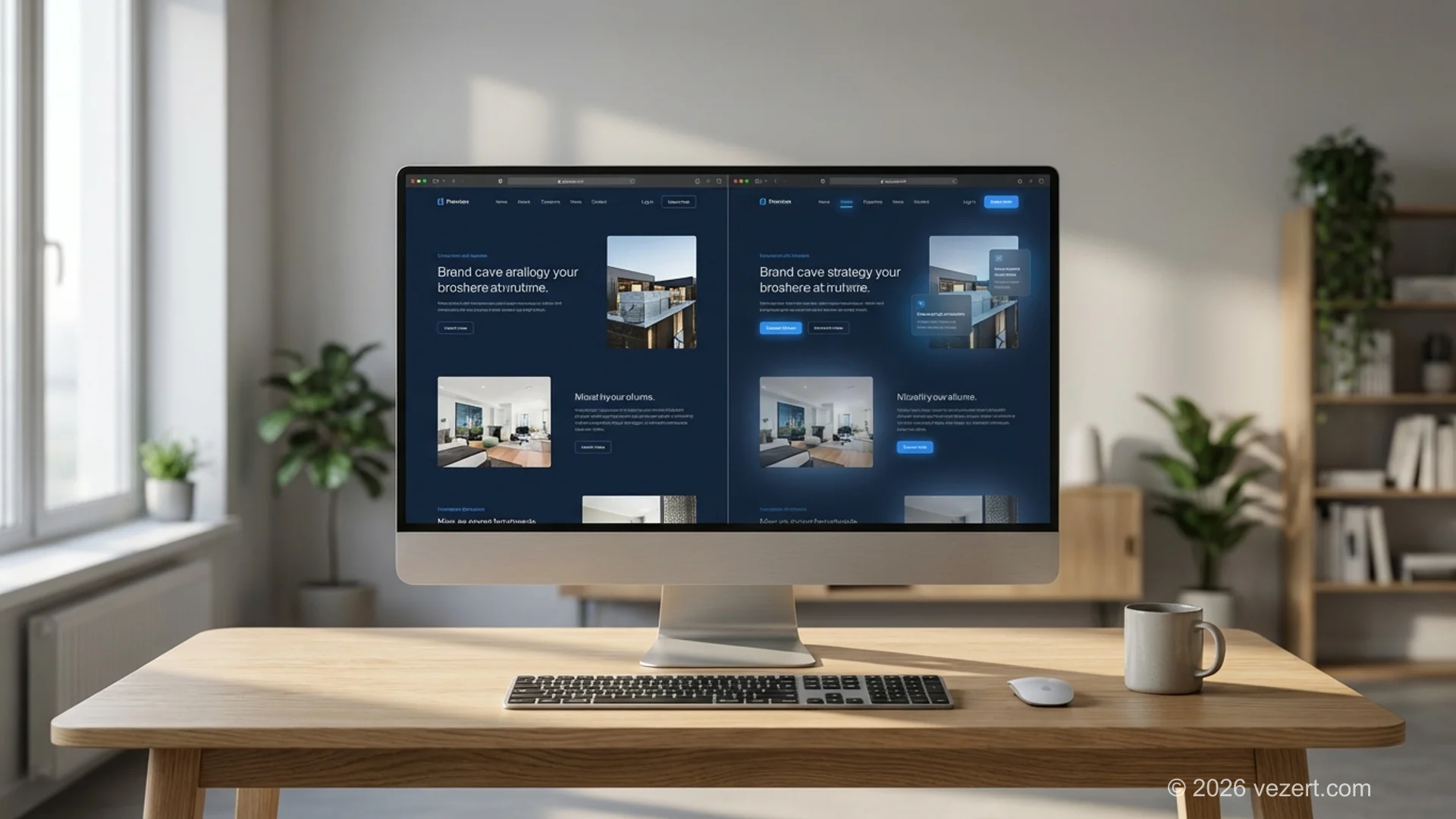
The sweet spot for landing page animation is what I call "barely there" — users should feel the page is responsive and polished without being able to point to specific animations. If someone comments on how cool your landing page animations are, you've probably overdone it. Our team applies these principles to every project we deliver, ensuring motion serves business goals.
Seven Animation Mistakes That Hurt UX
I've seen these web animation UX patterns repeatedly across client audits, agency portfolios, and even big-brand websites. Avoid them.
1. Animating layout properties instead of transforms. Animating margin, padding, width, or height triggers layout recalculation across the entire page. Stick to transform (translate, scale, rotate) and opacity. This single change can take a janky animation from 15fps to a smooth 60fps.
2. Using animation as a loading substitute. Fancy entrance animations that delay content visibility don't make slow load times feel faster — they make them feel designed-in, which is worse. If your page takes 3 seconds to become interactive, fix the performance problem. Don't dress it up with a spinning logo.
3. Ignoring prefers-reduced-motion. This is an accessibility failure, not a preference. About 35% of adults over 40 are affected by vestibular disorders. Ignoring this media query means your site may cause real physical discomfort.
4. Making animation mandatory for comprehension. If users can't understand your interface without watching an animation complete, you have an information architecture problem. Animation should enhance understanding, not replace it.
5. Overloading the first paint. Multiple simultaneous entrance animations (logo spins in, nav slides down, hero fades up, particles float around) create visual chaos. Stagger your entrance sequences and keep simultaneous animations to a maximum of 2-3 elements.
6. Inconsistent easing and timing. Mixing bounce, elastic, linear, and ease curves across the same interface creates a disjointed experience. Pick one or two easing functions and use them consistently. Your motion should have a recognizable "feel" across the whole site.
7. No fallback for low-powered devices. That smooth GSAP timeline looks great on your M3 MacBook. On a three-year-old Android phone with 3GB of RAM? It's a slideshow. Test on real devices, set up a performance budget, and be ready to degrade gracefully.
Ready to Improve Your Website's Animation UX?
From landing pages to web portals, we design motion that drives conversions and delights users — all within performance budgets that keep Core Web Vitals green.
Get a Free UX AuditMotion With Purpose: Building Better Web Animation UX
Web animation UX has matured past the era of "add some parallax and call it modern." In 2026, motion is a functional design tool with measurable impact on user experience, conversion rates, and accessibility.
The principles are straightforward: animate with purpose, optimize for performance, respect user preferences, and test on real devices. Every transition should answer the question "why does this move?" If you can't articulate the reason, remove the animation. Keep in mind that animation is just one piece of the UX puzzle — the five UX mistakes that most reliably hurt conversions cover the structural issues that sit underneath it: weak CTAs, poor hierarchy, and confusing navigation.
The brands and products that get this right create interfaces that feel effortless. Not because they lack complexity, but because motion smooths over the complexity in a way that feels natural. That's the goal — not to impress users with your animation skills, but to make them forget they're using an interface at all.
If you're building or redesigning a website and want animation that actually works for your business goals, reach out to our team. We approach every project — from landing pages to corporate websites to web portals — with the same principle: motion should earn its place on the page, or it doesn't belong there.
On This Page
- Web Animation UX: A Communication Tool, Not Decoration
- Micro-Interactions: The Small Moves That Build Trust
- Scroll-Driven Animation and UX Storytelling
- The Performance Budget: When Web Animation Costs Too Much
- CSS vs JavaScript Animation: Picking the Right Tool
- How Web Animation UX Affects Conversion Rates
- Accessibility and Motion: Respecting Every User
- Animation UX on Landing Pages: What Actually Works
- Seven Animation Mistakes That Hurt UX
- Motion With Purpose: Building Better Web Animation UX